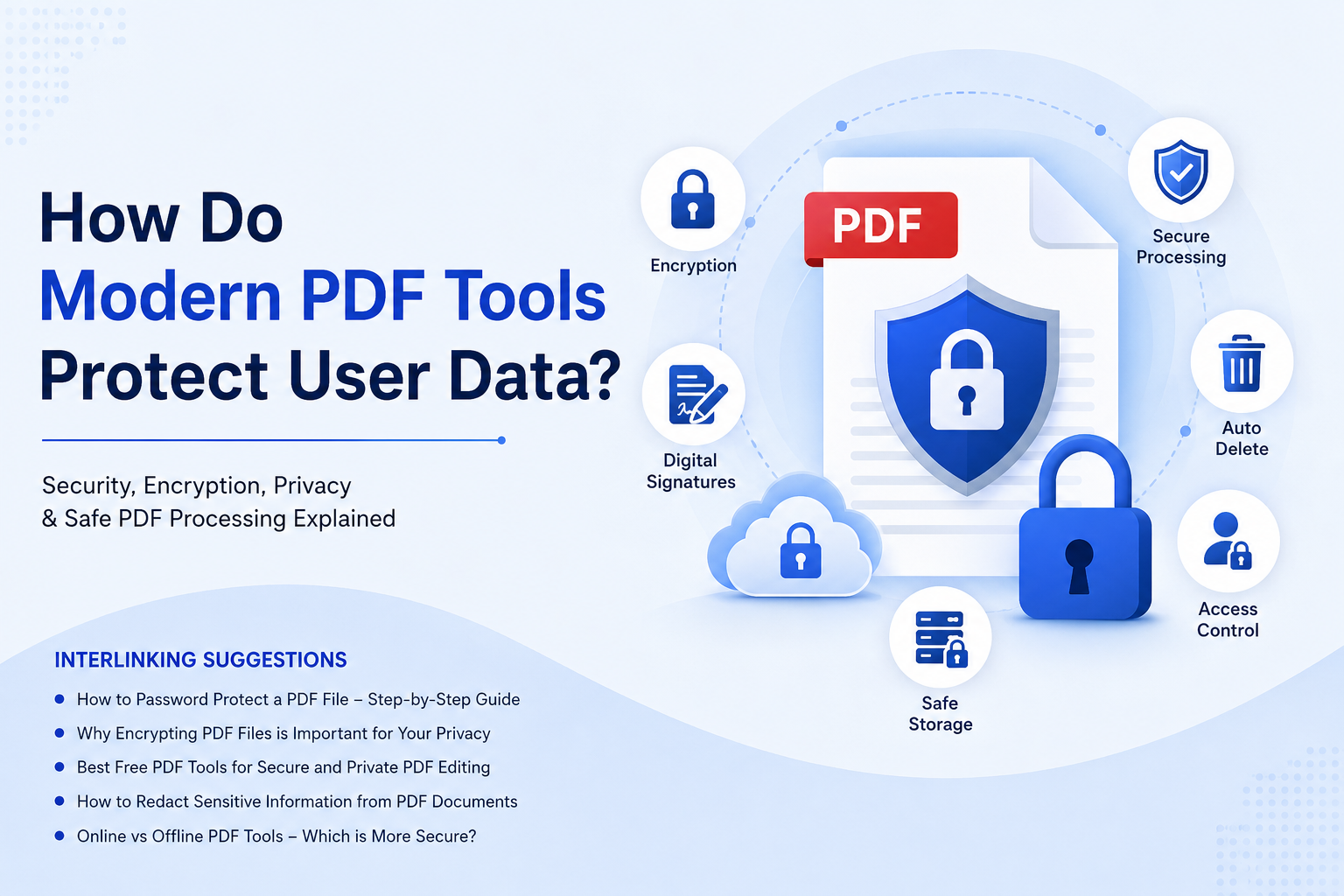
How do modern PDF tools protect user data?
A Simple Guide to Keeping Your PDFs Private, Safe and Secure
I thought that keeping a PDF safe was about adding a password to it. If you had to enter a password to open the document then it was secure.
It turns out that keeping PDFs safe is a lot more than that.
We deal with all sorts of documents every day. We have invoices, bank statements, contracts, employee records, identity documents, certificates, customer information and business reports. When I upload one of these files to a PDF tool on the internet I am not just changing the document. I am also sending information to another computer.
This makes me wonder: how do these PDF tools really keep my information safe?
The answer to this question depends on how the tool handles my files, how long it keeps them, how it scrambles the information, who can look at the files and if the service really cares about keeping my information private.
In this guide I will tell you what happens when you use a PDF tool, what to look for to keep your PDFs safe and which PDF tools are good to use.
Think about PDF privacy and security when you use a PDF tool. PDF privacy and security are important when you upload a PDF to a tool. You need to know how the PDF tool handles PDF privacy and security.
You should choose a PDF tool that keeps your PDFs safe and secure. PDF security is important for protecting your information. PDF privacy is also important, for keeping your information safe.
When you look for a PDF tool look for one that has PDF security and PDF privacy features. This will help keep your PDFs safe and secure.
Why PDF Data Protection Is More Important Than Ever
PDFs are often seen as files but they can hold very valuable information
A single PDF might have my home address, phone number, financial details, signature, passport information, business plan, customer list or a secret contract
If I send such a file to an online PDF service I should know where that file goes How to Password Protect a PDF File – Step-by-Step Guide
Modern PDF tools usually use one of two methods
- Cloud or server-based processing
-
Local or device-based processing
With server-based processing the file is sent to the company's systems worked on and then sent back to me
With device-based processing, the browser or software on my computer does the work. In this case the document might not ever leave my device
This difference is very important when I am handling papers.
1. Encryption Helps Keep My Files Safe When I Send Them
The thing I want to make sure of is encryption. When I send a PDF to a website my file goes from my computer to the website's computers. If encryption is not used someone could intercept my information while it is being sent.
Good websites use HTTPS and TLS encryption to keep my information safe. So when I see HTTPS in my browser that is a start. Why Encrypting PDF Files Is Important for Your Privacy
However I should not think that just because a website has HTTPS it means my PDF service is completely private. It keeps my connection safe. It does not tell me everything I want to know about my PDF file, such as
- where my document is stored
-
how long it is stored
-
who can look at it
-
if it is looked at by the website
-
if it is shared with companies
-
if it is deleted after I am done with it
That is why I need to look at more than the lock icon, in my browser.
2. Automatic File Deletion Reduces Risk
One of the useful privacy features in an online PDF tool is automatic deletion.
I don't want a document that has information staying on someone else's server for a long time after I have finished converting it. Different services have retention periods.
This is a security principle:
The less time sensitive data is on a remote server, the smaller the chance that someone unauthorized can access it.
When I look at PDF tools I therefore check their retention policy before I upload any documents.
3. Client-Side Processing Can Offer Stronger Privacy
This is one of the interesting changes in modern PDF technology.
Some PDF tools can do work directly inside my browser.
By sending my document to a remote server, technologies like WebAssembly can let PDF operations happen on my own device. This can be very appealing for files.
For example some PDF services that focus on privacy say their tools process documents inside the browser which means the real content of the document does not need to be sent to their servers.
The benefit is clear: If the document never leaves my device there is no copy of the document that can be stolen, kept or accidentally shared.
However I should still look closely at this claim. Some websites use client-side processing for some tools but server-side processing for tools.
Therefore I should look at the privacy information for the tool I am using.
4. Secure Storage and Access Controls Matter
I want my PDF stored online sometimes. This is because I need to get my documents from my laptop, phone and office computer.
Secure cloud storage is really important in this situation.
Modern platforms use things like encrypted storage and access controls to keep my documents safe. This kind of security is really useful for businesses.
When I am looking for a place to store my PDF I should not just ask if I can edit it. I should also ask who can get to my document after I upload it. A good place to store my documents should make it clear who can get to them.
5. Password Protection Adds Another Layer
Using a password is still a way to keep my PDF safe. If I have a report that I need to send to someone I can lock it with a strong password.
For example Adobe Acrobat lets users put a password on their PDFs and control who can get to the information
Some tools also let me decide what people can do with my document, such as:
- Opening the document
-
Editing it
-
Printing it
-
Copying what is inside
-
Filling out forms
I need to remember that a weak password is not good enough. Using a password like 123456 does not really keep my document safe. For documents I need to use a long unique password that I do not use for anything else. I should use a password like that to keep my PDF safe.
Secure storage and access controls, like the kind DocHub has are also important for keeping my documents safe. So I should use both storage and password protection to keep my documents safe.
6. Digital Signatures Help Protect Document Integrity
Privacy is not the thing I worry about when it comes to security. Sometimes I need to know if someone changed a document after it was signed. Digital signatures are really useful in this situation. A digital signature can help me verify that a document is real and that it has not been changed.
This can be really valuable for things like:
-
Contracts
-
Legal documents
-
Agreements
-
documents
-
Business approvals
-
Official records
7. Redaction Is Different From Simply Covering Text
I think a lot of people who use PDFs do not understand this. If I put a box over someone's bank account number the number is still there underneath the box.
This is not a way to remove sensitive information. New PDF software has tools that can permanently remove sensitive content. So if I need to remove information from a document before I share it I should use a real redaction tool not just draw a box over the information. How to Redact Sensitive Information from PDF Documents
My Advice Before Uploading a Sensitive PDF
is the checklist I personally recommend following
1. Check the privacy policy
Don't upload information
Look for clear answers about collection and processing and storage and deletion and third-party sharing Online vs Offline PDF Tools – Which Is More Secure?
2. Check whether processing happens locally
If a tool can process the document inside my browser or on my computer that can be a major privacy advantage How Does AI PDF Work?
3. Look for deletion
If the file must be uploaded I prefer services that clearly explain when temporary files are deleted
4. Use passwords
If I'm protecting the final PDF I use a long and unique password
5. Don't upload information
If a document contains information that isn't required for the task I remove it first
6. Use redaction
Never assume that placing a black box over text permanently removes the information
Use a real redaction feature
7. Keep software updated
Security vulnerabilities can exist in PDF readers and operating systems Keeping them updated reduces risk
8. Be careful with tools
"Free" doesn't automatically mean unsafe. I still want to know how the service makes money and what data it collects How to Protect Sensitive Documents Before Sharing
9. Check where data is stored
For business documents the location of servers and applicable privacy regulations may matter
10. Download and delete temporary files
After finishing a PDF task I don't leave sensitive documents sitting in browser downloads or cloud storage unnecessarily
What E-E-A-T Looks Like When Discussing PDF Security
When I write about document privacy I don't think it is enough to simply say This PDF tool is safe
A trustworthy article should explain why?
That means checking information directly from the providers security documentation and privacy policy and technical documentation whenever possible Can OCR Recognize Handwritten Text?
For example I can verify claims such, as
- Whether encryption is used
-
Whether files are automatically deleted
-
Whether processing is local or cloud-based
-
Whether security certifications exist
-
Whether access controls are available
-
Whether audit trails exist
-
Whether the provider explains its data practices
This approach makes the information more useful because I'm not asking the reader to trust an unsupported claim Security also changes over time
A company may change its infrastructure and retention period and privacy policy and security certification. That's why I recommend checking the provider's current documentation before making decisions involving highly confidential documents. How to Split Large PDF Files
Frequently Asked Questions
Are online PDF tools safe?
Many reputable PDF tools use encryption, access controls, secure infrastructure, and automatic deletion. However, safety depends on the specific service and how it processes and stores documents.
I always check the provider's privacy and security policies before uploading sensitive information.
Is a PDF password enough to protect my document?
Not always.
A strong PDF password can prevent unauthorized opening or editing, but it doesn't necessarily protect the document before it is uploaded to an online service.
I need to consider both file security and service-level privacy.
Is browser-based PDF processing more private?
It can be.
If the PDF is processed completely inside my browser and never uploaded, the remote-service exposure is much lower.
But I should verify that the particular PDF function actually works this way.
Should I upload bank statements to an online PDF tool?
I would be cautious.
If the task can be completed locally, I would generally prefer local processing. If I must use an online service, I would choose one with clear encryption, retention, deletion, and privacy policies.
How long should a PDF remain on an online server?
Ideally, only as long as necessary for processing.
Short automatic deletion periods reduce the amount of time a sensitive document remains stored remotely.
Does HTTPS mean my PDF is completely safe?
No.
HTTPS protects communication between my device and the website, but it doesn't answer questions about server storage, employee access, retention, or document processing.
What is better: cloud PDF processing or local PDF processing?
For maximum privacy, local processing can be preferable because the document can remain on my device.
For convenience and collaboration, cloud processing can be more practical.
The right choice depends on the sensitivity of the document.
Can a PDF still contain hidden information after editing?
Yes.
PDFs can contain metadata and other embedded information. When preparing a sensitive document for sharing, I should consider metadata removal and proper redaction in addition to password protection.
Final Thoughts
When I think about keeping my PDFs safe it is not about adding a password to the document anymore. I need to consider the process of what happens to my file when I use a PDF tool.
-
Where does my file go?
-
Is the connection to the server secure?
-
Does the tool work on my device or does it go to some other computer?
-
How long does the file stay on the server?
-
Who has access to my file?
-
Does the tool get rid of my file when I am done?
-
Can I decide who can see my file and what they can do with it?
-
Can I remove information from my file properly?
-
Can I make sure the document is real and not fake?
I ask myself these questions because my PDFs often have information that I do not want everyone to see.
For things I do with PDFs websites like Smallpdf, iLovePDF, Sejda and PDF24 are easy to use and they have good security. Modern Paperless Document Management in 2026
For important documents that need a lot of security tools like Adobe Acrobat, Foxit and Nitro give me more control over things like encryption and who can see my documents.
But the important thing I learned is simple:
The best PDF tool for keeping my files safe is not the one that can do the most things.
It is the one that handles my files in a way that's as careful as the information in my PDFs.
-
If I am working on a document that anyone can see, like a brochure I want it to be easy to use.
-
If I am working on a secret document like a contract or a financial statement or something, with my personal information I want to make sure it is private.
When I can I like to keep my sensitive documents on my own device. That way there are places where my private information can get out.