How to Edit PDF Files on Android and iPhone: What Actually Works
I’ve had this happen more times than I’d like to admit: a PDF arrives while I’m away from my computer, there’s one wrong name in it, a date needs changing, and suddenly a supposedly simple document becomes a small technical problem.
The first instinct is usually to open the PDF in whatever app happens to be installed.
That’s where the confusion starts.
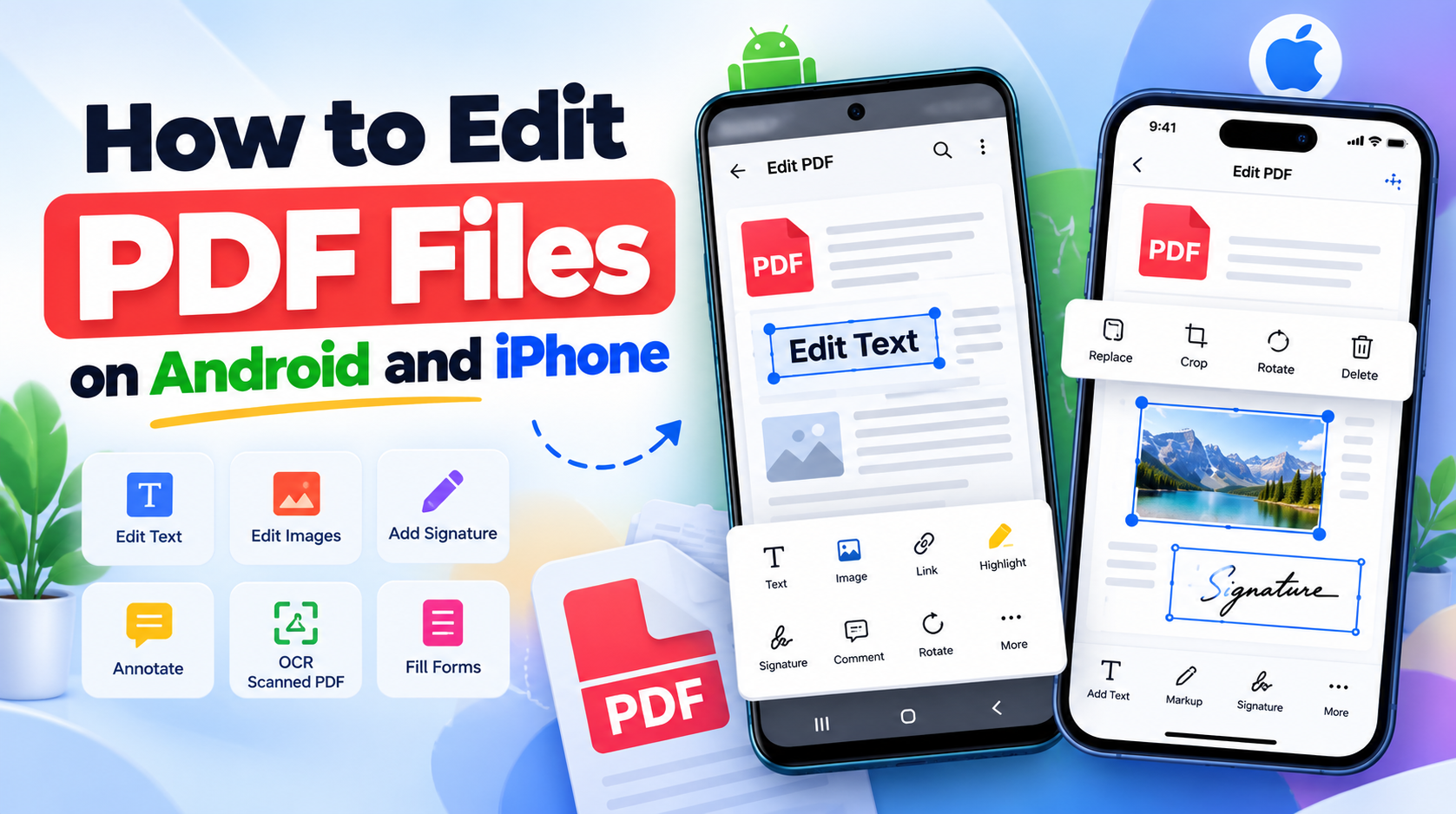
A PDF viewer isn't necessarily a PDF editor. An annotation tool isn't necessarily an editor either. You can draw a box over a word, add a note, or sign a document without actually changing the original text underneath it. Apple’s built-in tools, for example, can annotate PDFs and add text or signatures, while dedicated editors such as Adobe Acrobat, Foxit, Xodo, and iLovePDF offer deeper editing capabilities. (Apple Support)
So when someone asks me, "How do I edit a PDF on my phone?", my first question isn't which app they should download.
It's what exactly are they trying to change?
That distinction saves a surprising amount of time.
What "Edit a PDF" Actually Means
There are at least two very different jobs hiding behind that one sentence.
You might want to change existing content. That means selecting text already inside the PDF, correcting a spelling mistake, changing a number, moving an image, or modifying an existing paragraph.
Or you might simply want to mark the document up.
That could mean highlighting a sentence, drawing an arrow, adding a comment, placing a signature, filling a form, or writing something on top of the page.
Those aren't the same operation.
Adobe's current mobile documentation, for example, distinguishes editing existing text from adding new text or images, and its mobile editing features require a subscription. (Adobe Help Center)
I've seen people spend ten minutes trying to "edit" a PDF with a markup pen when all they actually needed was a proper content editor.
It's a bit like writing correction fluid over a printed letter and calling that word processing.
How to Edit a PDF on Android
Android gives you a lot of choice, which is both useful and slightly annoying.
There are dedicated PDF editors, browser-based tools, cloud applications, document apps, and basic annotation tools. The right choice depends heavily on whether you need real text editing or just quick changes.
Method 1: Use Adobe Acrobat on Android
Adobe Acrobat is one of the more recognizable options because it treats the PDF as an actual document rather than simply a page you can scribble on.
On Android, the general workflow is:
-
Open the PDF in Acrobat.
-
Select Edit PDF.
-
Tap the text you want to change.
-
Select Edit text.
-
Make the correction.
-
Save the document.
Adobe's current Android documentation says users can edit existing text and also change text formatting, while images can be moved, resized, rotated, or deleted. (Adobe)
There is a catch.
Actual editing is a paid feature in Acrobat mobile. Adobe currently states that editing PDFs on phones and tablets requires an Acrobat Premium or Pro subscription. (Adobe)
That's worth knowing before you build your entire workflow around the free version.
Method 2: Use Xodo
Xodo takes a different approach and has become popular with people who need more than basic PDF viewing.
Its documentation describes content editing that can modify existing text and images, including moving or deleting content. (Xodo)
On Android, the basic process is straightforward:
-
Open Xodo.
-
Select the PDF.
-
Open the editing tools.
-
Choose the content you want to modify.
-
Make your changes.
-
Save the edited document.
What I like about this type of workflow is that you don't have to convert the PDF into Word just to correct a sentence.
That conversion step is where formatting problems often sneak in.
How to Edit a PDF on iPhone
The iPhone situation is slightly different because Apple has built several useful PDF capabilities directly into iOS.
You don't always need another app.
Using Apple's Built-In PDF Tools
Apple's current iPhone software includes Preview, which can open PDFs, fill forms, add signatures, highlight or underline text, and annotate documents. (Apple Support)
You can also use Markup to add text, shapes, signatures, drawings, and other annotations to a PDF. (Apple Support)
For a quick document correction, this can be enough.
Suppose someone sends you a five-page agreement and asks you to sign page four. There's no reason to install a heavyweight PDF editor just for that.
Open it, use Markup, add your signature, save it, and send it back.
That's the kind of task where the built-in iPhone workflow makes sense.
But there's a line.
If you need to change an existing paragraph inside the PDF, Apple's basic markup tools aren't the same thing as a full content editor.
That's when I would move to a dedicated application.
Editing Existing Text Is the Tricky Part
This is the bit that catches people.
A PDF isn't simply a Word document wearing a different file extension.
Its text, fonts, images, positioning information, graphics, and other objects are stored according to the PDF structure. When you change one element, the editor has to preserve the surrounding layout.
Imagine a restaurant menu printed on a sheet of paper.
Changing the price of one dish sounds easy until you realize the new price is longer, pushes another line downward, and suddenly the spacing across the entire section looks wrong.
PDF editing has a similar problem.
The document may look simple on screen, but its underlying layout can be surprisingly rigid.
This becomes even more obvious with old PDFs, unusual fonts, scanned documents, or heavily designed brochures.
If the PDF is actually a scanned image, there may be no editable text there at all.
You're looking at pixels.
That's when OCR becomes relevant.
What If the PDF Is Scanned?
A scanned PDF is one of the easiest ways to misunderstand what "editing" means.
Imagine photographing a printed page.
The words look perfectly readable to your eyes, but the computer initially sees an image rather than editable characters.
An OCR system analyzes that image and attempts to identify the letters.
Foxit's current mobile documentation describes OCR capabilities for converting scanned text and handwritten notes into digital, searchable text. (Foxit)
That doesn't mean OCR is magic.
A blurry scan, unusual font, skewed page, handwriting, or poor contrast can cause mistakes.
I've always treated OCR as a first pass, not an unquestionable transcription.
If you're converting an invoice or legal document, check the result before trusting it.
How to Add Text Without Changing Existing Text
This is much easier.
If you only need to place information onto a PDF, almost any decent mobile PDF application can handle the job.
For example:
-
Add a date.
-
Add a name.
-
Add a short note.
-
Add a signature.
-
Add a label.
-
Add a text box.
Adobe's current mobile instructions show how users can add text, adjust its size and color, move the text box, and then save the result. (Adobe Help Center)
Apple's Markup tools provide a similar concept for adding text boxes and signatures to supported documents. (Apple Support)
The distinction matters because adding text on top of a page is considerably easier than reconstructing existing PDF text.
How to Sign a PDF on Android or iPhone
This is probably one of the most useful mobile PDF tasks.
You receive a form.
Someone needs your signature.
You're standing in a parking lot.
There isn't a printer anywhere nearby.
This is exactly where phone-based PDF editing earns its keep.
On iPhone, Apple provides signature functionality through Markup, and Preview also supports filling and signing PDF forms. (Apple Support)
iLovePDF also provides mobile signing and annotation tools on both Android and iOS. (iLovePDF - Online tools for PDF)
The practical workflow is simple:
-
Open the PDF.
-
Choose the signing or markup tool.
-
Create or select your signature.
-
Position it.
-
Resize it if necessary.
-
Save a new copy.
-
Review the final PDF before sending.
That last step gets ignored far too often.
Always open the saved PDF again.
A signature appearing correctly in the editor doesn't mean the exported file is exactly what you intended.
Android vs iPhone PDF Editing
The difference isn't really about which operating system has a PDF button.
It's about the kind of editing you're doing.
| Task | Android | iPhone |
|---|---|---|
| Open PDF | Very easy | Very easy |
| Highlight text | Yes | Yes |
| Draw on PDF | Yes | Yes |
| Add signature | Yes | Yes |
| Fill forms | Yes | Yes |
| Add text | Dedicated apps | Built-in Markup + apps |
| Edit existing text | Dedicated PDF editor | Dedicated PDF editor |
| Edit images | Dedicated apps | Dedicated apps |
| OCR | Available in major editors | Available in major editors |
| Offline editing | Depends on app | Depends on app |
| Built-in basic markup | Depends on device/app | Strong built-in support |
| Advanced PDF editing | Dedicated editor recommended | Dedicated editor recommended |
The important thing here is that neither Android nor iPhone automatically wins every PDF task.
For quick annotation, an iPhone's built-in tools can be remarkably convenient. For deeper editing, the application you choose matters more than the operating system.
10 PDF Editing Websites and Tools Worth Knowing
I wouldn't choose a PDF editor simply because a website calls itself the "best."
I look at what it actually lets me change.
1. Adobe Acrobat
A strong choice when you need established PDF editing capabilities and work across desktop and mobile. Acrobat mobile supports editing existing text and images, although deeper editing requires a paid subscription. (Adobe)
2. Foxit PDF Editor
Foxit offers dedicated Android and iOS PDF editing, including text, objects, annotations, OCR-related workflows, and signing. (Foxit)
3. Xodo
Xodo supports PDF editing across Android and iOS, with tools for text, images, annotations, signing, and other document operations. (Xodo)
4. iLovePDF
Useful when you want editing alongside conversion, compression, scanning, signing, and other PDF operations. Its mobile app supports Android and iOS. (iLovePDF - Online tools for PDF)
5. Smallpdf
Smallpdf combines browser-based PDF editing with mobile apps for Android and iOS and provides a broad collection of PDF tools. (Smallpdf)
6. Sejda
Sejda is particularly useful when you want browser-based editing, adding text, images, links, annotations, and signing. Its online service also states that uploaded files are automatically deleted after two hours. (Sejda.com - We help with your PDF tasks)
7. PDFgear
PDFgear provides mobile PDF editing on Android and iPhone, including editing existing text in supported workflows. (PDFgear)
8. Apple Preview and Markup
For iPhone users, Apple's built-in tools are worth checking before installing anything. Preview supports PDF annotation, text selection, highlighting, form filling, and signatures. (Apple Support)
9. Google Drive
Google Drive on Android can annotate PDFs with a finger or stylus and save the original or a new copy. That's useful, but it shouldn't be confused with full editing of existing PDF text. (Google Help)
10. Microsoft 365
Microsoft's mobile apps are useful when your PDF workflow begins with Word, Excel, or PowerPoint. Microsoft also documents converting Office documents to PDF on mobile. For changing PDF content itself, Microsoft recommends starting with the original Office file when possible or using a PDF conversion/editing workflow. (Microsoft Support)
Which PDF Editor Should You Choose?
I wouldn't give one universal answer because the "best" editor changes with the job.
If I only need to annotate, sign, or fill something on an iPhone, I'd first try Apple's built-in tools. There is very little point installing another application for a task the phone already handles well. (Apple Support)
If I need serious text and image editing, I'd look at a dedicated editor such as Acrobat, Foxit, Xodo, iLovePDF, or PDFgear rather than relying on markup.
If I want a browser-based workflow, Smallpdf or Sejda are practical options, particularly when I don't want to install software. (Smallpdf)
If privacy is the deciding factor, I'd be more careful with browser-based services because the workflow involves uploading the document. Sejda explicitly describes encryption and automatic deletion after two hours, but for genuinely sensitive files, an offline-capable workflow deserves consideration. (Sejda.com - We help with your PDF tasks)
And if the document originally came from Word or Excel, I'd seriously consider editing the original source file instead of fighting with the PDF.
That sounds obvious.
Yet it's probably one of the most useful pieces of PDF advice I can give.
The Real Difference Between Android and iPhone
Android gives you an enormous ecosystem of PDF applications.
That's convenient when you need specialized functionality.
iPhone's advantage is different. Apple's built-in Preview and Markup tools make basic PDF interaction feel integrated into the operating system rather than like a separate document-management task. (Apple Support)
Neither approach removes the fundamental problem, though.
PDF editing gets difficult when the document itself is complicated.
A simple text-heavy PDF is one thing.
A brochure with embedded fonts, positioned text, vector artwork, tables, images, hyperlinks, and scanned sections is something else entirely.
That's when a phone screen starts feeling very small.
A Practical Mobile PDF Editing Workflow
When I need to edit a PDF from a phone, I'd use this sequence:
1. Identify the type of change.
Do you need to edit existing text, add text, annotate, sign, fill a form, or rearrange pages?
2. Check whether it's a scanned PDF.
If it is, you may need OCR before attempting serious text editing.
3. Try the simplest available tool first.
For an iPhone signature, built-in Markup may be enough. For Android annotation, Google Drive may be sufficient. (Google Help)
4. Move to a dedicated editor when necessary.
Don't waste twenty minutes trying to force a basic viewer to perform a job it wasn't designed to do.
5. Save a new copy.
Especially when the original is an important contract, certificate, invoice, or application.
6. Reopen the final PDF.
Check text alignment, images, signatures, page order, and anything else you changed.
That last inspection is boring.
It's also the part that prevents embarrassing mistakes.
Frequently Asked Questions
Can I edit a PDF on Android for free?
Yes, but what "edit" means matters. Many applications provide free annotation, signing, or basic editing, while deeper editing of existing text can require a subscription or paid feature. Adobe, for example, requires an Acrobat Premium or Pro subscription for mobile PDF editing. (Adobe)
Can I edit a PDF on iPhone without installing an app?
For many basic tasks, yes. Apple's Preview and Markup tools can handle annotations, text additions, highlighting, signatures, and form filling. (Apple Support)
For full editing of existing PDF text, you may still want a dedicated PDF editor.
Can I change existing text inside a PDF?
Yes, if the PDF contains actual editable text and your application supports content editing.
Adobe, Foxit, Xodo, and other dedicated editors support this type of workflow. (Adobe)
Why can't I edit the text in my PDF?
The PDF may be scanned, protected, flattened, or structured in a way that your application cannot directly modify.
A scanned document may require OCR before the text becomes searchable or editable.
Can I edit a PDF without converting it to Word?
Yes.
Dedicated PDF editors can modify PDF content directly. This can be preferable when preserving the original page layout is important.
Is editing a PDF the same as annotating it?
No.
Annotation adds information on top of the document. Editing changes the document's existing content.
That distinction is easy to miss and causes a lot of confusion.
Is it safe to upload a PDF to an online editor?
It depends on the provider, its privacy practices, the processing model, and the sensitivity of the document.
For ordinary documents, an established service may be perfectly reasonable. For confidential financial, legal, medical, or business documents, I would examine the provider's handling and deletion policies carefully before uploading anything.
Can I edit a PDF on my phone without internet?
Some dedicated applications support offline workflows, but the exact capabilities depend on the application and feature.
Foxit, for example, describes mobile workflows that can work with documents stored on the device as well as cloud services. (Foxit)
Can I edit a scanned PDF?
Usually, you need OCR if you want to change the existing scanned text.
Without OCR, the PDF may essentially be a collection of page images.
Should I edit the original Word document instead?
If the PDF was created from a Word, Excel, or PowerPoint file and you still have the original, yes, I would usually start there.
Microsoft itself recommends starting with the original Office file when possible for documents created in Office applications. (Microsoft Support)
It avoids a lot of unnecessary layout reconstruction.
Conclusion
Editing PDFs on a phone has moved far beyond simply drawing on a document.
The tools are capable now. Adobe supports genuine text and image editing on mobile, Foxit offers dedicated Android and iOS editing, Xodo provides content editing, iLovePDF combines editing with a broader document toolkit, and iPhone users have surprisingly capable built-in PDF markup and Preview features. (Adobe)
But the biggest mistake is still choosing the application before understanding the document.
If I only need a signature, I don't need a full PDF production suite.
If I need to replace a paragraph inside a complicated brochure, a markup tool isn't going to save me.
And if I have the original Word file sitting somewhere in cloud storage, converting everything into a PDF and then trying to rebuild the document on a six-inch screen is probably creating a problem that never needed to exist.
The real question isn't whether Android or iPhone can edit PDFs. The harder question is how much of the PDF you actually need to change before the phone stops being a convenient editor and starts becoming the wrong tool for the job.