Merging PDF Files is Not That Hard
I have worked with PDF files for a while now. I know that combining two or more documents can be a real pain. It sounds easy. When you actually need to do it it can be a hassle.
Lets say I have a quotation in one PDF file, an invoice in another and some other documents in a few files. Sending all of them separately is just messy. And printing them and scanning them again does not make any sense. What I really want is one PDF file that has everything in the right order.
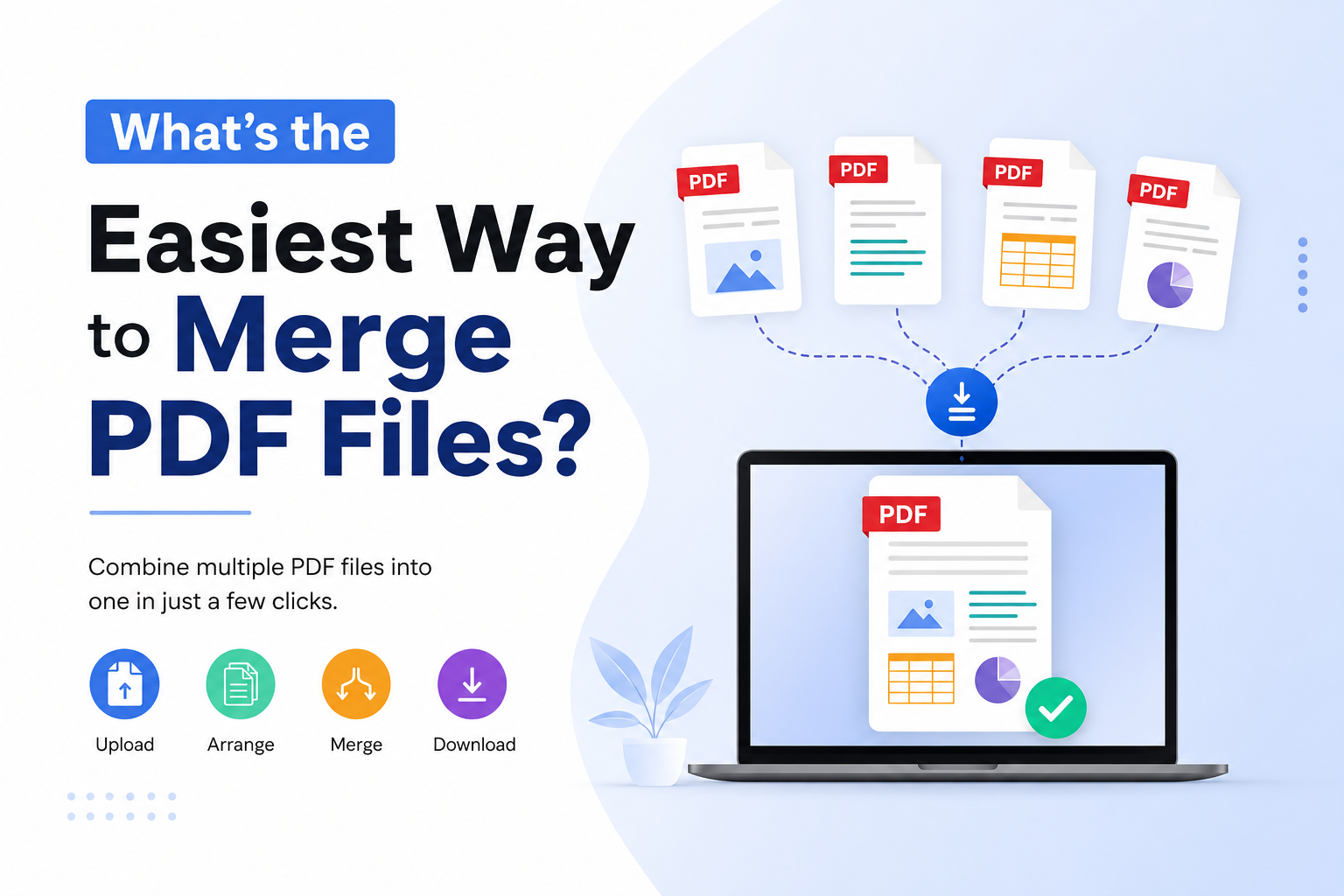
The good news is that merging PDF files is a lot easier than it used to be. I do not need any PDF software to do a simple job. Most of the time I can just upload my files to a website that merges PDFs put them in the order click merge and download the finished document.
But there is one thing I always keep in mind: the easiest way to merge PDF files is not always the best way.
If my documents have information I think about keeping them private first. If I am working with a lot of files I look at how the tool can handle them. If I do not want to upload anything I choose a tool that works on my computer.
So in this guide I will explain how I merge PDF files and which tools I use in situations.
What Does Merging PDF Files Mean?
When I merge PDF files I am putting two or more PDF documents into one PDF file.
For example lets say I have these files:
-
Invoice.pdf
-
Quotation.pdf
-
Terms.pdf
-
Product-Details.pdf
of sending four separate attachments I can merge them into one file called Complete-Documents.pdf. The original pages stay together in one document. I can put them in the right order before creating the final file.
This is useful for business proposals, invoices, applications, school assignments, project reports, portfolios, scanned documents and many other situations.
My 10 Picks for Merging PDF Files
|
Tool |
Best For |
Online |
Offline |
My Take |
|
Adobe Acrobat |
Trusted professional workflow |
✅ |
✅ |
Excellent all-round choice |
Smallpdf |
Beginners |
✅ |
✅ |
Very easy interface |
|
iLovePDF |
Multiple PDF tasks |
✅ |
✅ |
Great all-rounder |
|
PDF24 |
Free everyday use |
✅ |
✅ |
Excellent value |
|
Sejda |
Page-level control |
✅ |
✅ |
Great for organization |
|
PDFsam Basic |
Privacy/offline work |
❌ |
✅ |
Strong offline choice |
|
Xodo |
Device-based processing |
✅ |
✅ |
Good privacy-focused option |
|
Foxit |
Business users |
✅ |
✅ |
Strong professional alternative |
|
Soda PDF |
PDF editing + merging |
✅ |
✅ |
Useful if I need more than merging |
|
Nitro PDF |
Professional desktop work |
❌ |
✅ |
Better for advanced workflows |
My Simple Way of Merging PDF Files
When I only need to combine documents I usually choose a website that merges PDFs.
My process is very simple:
1. I select my PDF files. I open a website that merges PDFs and upload the documents I want to combine.
2. I check the order. This is the step I do not skip. If I upload these files:
-
Cover
-
Report
-
Appendix
-
Certificate
I make sure they are in the order before merging.
3. I remove any pages. Some tools let me look at pages. If I see a page or a duplicate page I remove it before creating the final document.
4. I merge the files. Once everything looks correct I select the merge option.
5. I. Check the result. I always open the PDF file to make sure it is correct.
That is my process. For everyday situations it only takes a few minutes.
Now lets look at some tools I use to merge PDF files:
1. Adobe Acrobat. If I am looking for a professional name Adobe Acrobat is one of my first choices. Its online merger lets me upload PDFs, put them in the order and combine them into a single document.
2. Smallpdf. When I want something, Smallpdf is one of the easiest options. Its merger supports PDFs well as other file types and it lets me rearrange pages before merging.
3. ILovePDF. I consider iLovePDF more of a toolbox than a merger. Its merge tool lets me select PDFs, change their order and combine them.
4. PDF24. PDF24 is a tool that does not cost anything. Its official merger is free, requires no registration and automatically deletes uploaded files from its server after one hour.
5. Sejda. Sejda is useful when I want control over the structure of my final PDF. Besides arranging files its merger provides options involving page sizes, bookmarks and other document organization features.
6. PDFsam Basic. If privacy is my concern I prefer an offline approach. PDFsam Basic is an open-source desktop application that can merge and split PDFs locally.
7. Xodo. Xodo is another option when privacy matters. Its online PDF merger processes files on the user's device. Does not upload them to its server.
8. Foxit. Foxit is well known in the PDF space. Its online merge tool allows users to upload PDFs, reorder them and start the merging process.
9. Soda PDF. Soda PDF goes beyond merging. Its online merger allows me to upload files, arrange them and optionally continue editing the resulting document.
10. Nitro PDF. Nitro PDF is more suitable when PDF work is part of my professional workflow. It offers features beyond merging, including editing, OCR, electronic signatures and document conversion.
These are the tools I use to merge PDF files. I choose the one that best fits my needs.
Which PDF Merger Is Better?
This is where I wouldn't simply say, "Tool X is the best." My choice depends on what I'm actually trying to accomplish.
If I want the option
I would look at Smallpdf. The interface is beginner-friendly. The workflow is straightforward.
If I want an everyday option
I would seriously consider PDF24. Its current online merger is advertised as free with no registration making it particularly attractive for tasks.
If I already use Adobe
I would use Adobe Acrobat. There's a reason for me to move to another service simply for basic merging when I am already inside the Acrobat ecosystem.
If privacy is my priority
I would choose PDFsam Basic for work. Because processing happens locally my documents don't need to be uploaded to a service.
If I want browser-based processing
I would consider Xodo because its current merger states that processing happens on the device.
If I need PDF organization
I would consider Sejda. Its merger provides document-organization controls than I typically need for a simple merge.
My Advice Before Merging PDFs
I've found that the actual merging is rarely the problem. Preparing the files correctly is what saves me time.
Here are the checks I recommend.
Check the file order
Don't assume the website will automatically put your files in the order.
Always preview the sequence.
Remove pages
If two documents contain the same cover page or terms page remove the unnecessary copy.
Check page orientation
A landscape page mixed into portrait documents can make the PDF look unprofessional.
Check the file size
Merging doesn't necessarily make a PDF small. If the individual documents contain scanned images the final file can become quite large.
If necessary, compress the PDF afterward.
Don't upload documents blindly
This is probably my most important advice.
If I'm dealing with:
-
Bank statements
-
Identity documents
-
documents
-
Confidential business information
-
Personal financial records
-
Private contracts
I don't automatically upload them to the first PDF website I find.
I first check how that service handles uploaded files. Yet I use an offline/local tool when the document is particularly sensitive.
Online or Offline PDF Merging: Which Should I Choose?
I use a rule.
For documents → online merger.
For documents → offline merger.
Online tools are convenient because I don't have to install anything. I can open a browser, upload my files and finish the job quickly.Offline software takes a little setup but it can be the better choice when I don't want documents leaving my computer.There isn't a winner here.It's really a trade-off between convenience and control.
What Makes a Good PDF Merger?
When I compare PDF tools I don't look at whether they have a big "Merge" button.
I look at:
-
Ease of use
-
File-size limits
-
Number of files allowed
-
Page reordering
-
Page preview
-
Privacy practices
-
Offline availability
-
Output quality
-
Mobile compatibility
-
Additional PDF features
A tool that technically merges PDFs but forces me through steps isn't necessarily the best tool.
For a task simplicity itself is a feature.
How I Make Sure the Final PDF Is Correct
After merging I don't immediately send the document.
I open the PDF and quickly check:
-
First page
-
Last page
-
Page count
-
File order
-
Missing pages
-
Duplicate pages
-
Page orientation
-
Text readability
-
Images
-
File size
It takes less than a minute in most cases.That tiny check can prevent an embarrassing mistake—especially when I'm sending an important document to a client, employer, college or government office.
My Final Recommendation
If someone asked me "What's the easiest way to merge PDF files?" my answer would be:
Use an online PDF merger to upload the files, arrange their order, merge them and check the final document before sending it. For everyday work I would look at Smallpdf, PDF24, iLovePDF or Adobe Acrobat.
If privacy is more important than convenience I would move toward PDFsam Basic or another local-processing solution.
I don't think everyone needs PDF software just to combine three documents.
At the time I wouldn't choose a tool purely because it says "free." Privacy, file limits, processing method and the features I actually need matter as much.
The easiest tool is ultimately the one that lets me complete my task quickly, correctly and safely.
Frequently Asked Questions
Can I merge PDF files without installing software?
Yes. Online PDF merger tools let me combine PDFs directly through a web browser. Adobe Acrobat, Smallpdf, iLovePDF, PDF24, Sejda and others currently provide browser-based merging.
Can I merge two PDF files?
Yes. Most PDF merger tools are designed to combine documents into one file. The number and file-size limits depend on the service.
Will merging PDFs reduce quality?
Normally merging PDF pages should not inherently reduce the quality of their content. For example PDF24 explicitly says its merge operation preserves the quality of the page content.
Can I rearrange pages before merging?
Yes. Many modern PDF merger tools let me reorder files or pages before creating the document. Smallpdf, Sejda and iLovePDF all provide ordering functionality.
Is it safe to merge PDFs ?
It depends on the service and the type of document. I always check the providers privacy and file-retention practices before uploading information.
For sensitive documents an offline tool such as PDFsam Basic can be a better choice because processing happens locally.
Can I merge PDFs on my phone?
Yes. Several PDF services provide compatible web tools or dedicated mobile applications. Xodo for example states that its PDF tools work across desktop and mobile platforms.
Does merging PDFs create one file?
The result is one PDF. Its size depends largely on the contents of the original documents. Image-heavy scanned PDFs can produce a final file.
Can I remove pages while merging?
Some tools allow page-level organization before the merge. Smallpdf for example lets users preview pages, rearrange them and remove pages before merging.
Which is better: online or offline PDF merging?
For convenience I prefer tools. For documents I prefer offline processing. The right choice depends on the sensitivity of the files. How frequently I merge PDFs.
Conclusion
Merging PDF files doesn't need to be complicated. When I only have an ordinary documents to combine an online PDF merger is usually the quickest solution: upload, arrange, merge and download.
I don't thoose a PDF tool based only on speed. I also think about privacy, file limits, page organization, output quality and whether I actually need PDF features.
For users tools such, as Adobe Acrobat, Smallpdf, iLovePDF and PDF24 are strong places to start. For users who want processing PDFsam Basic is worth considering.
My biggest piece of advice is simple: don't overcomplicate a job. If I only need to combine three PDFs I don't need a PDF workflow. I just need a tool the correct page order and one final check before I share the document.
That is usually the way to merge PDF files—and the safest way to make sure the final document is actually ready to use.